Installing COLMAP can feel complex at first, especially for users who are not familiar with technical setups or command line tools. However, the reality is much simpler if you focus on user-friendly methods that avoid coding altogether. This guide explains how to install COLMAP on Windows, Linux, and macOS using straightforward approaches, while keeping the process clear, structured, and easy to follow.
COLMAP Installation
COLMAP is a widely used photogrammetry software that allows users to convert images into detailed 3D models. It is popular among researchers, developers, and creative professionals because of its accuracy and flexibility. Despite its advanced capabilities, the installation process can be simplified significantly by using prebuilt versions and graphical interfaces.
The goal of this guide is to help you install COLMAP without writing commands or dealing with complicated configurations. Whether you are a student, beginner, or someone who simply prefers a hassle-free setup, you will find this explanation practical and easy to follow
System Requirements and Preparation
Before installing COLMAP, it is important to ensure that your system is capable of running the software efficiently. While COLMAP can run on average computers, better hardware will significantly improve performance.
A modern system with sufficient memory and processing power ensures smoother image processing and faster reconstruction results. Having a dedicated graphics card is also beneficial, although not strictly required for installation.
Basic Requirements
- A 64 bit operating system
- Minimum 8 GB RAM
- Multi-core processor
- OpenGL compatible graphics support
Recommended Setup
- 16 GB or more RAM
- Solid State Drive for faster performance
- Dedicated GPU for acceleration
- Updated system drivers
Why Preparation Matters
Preparing your system in advance reduces the chances of errors during installation. It also ensures that once the software is installed, it runs efficiently without crashes or slowdowns.
Installing COLMAP on Windows
Windows provides the easiest and most beginner-friendly method for installing COLMAP without coding. Most users prefer this platform because of its simplicity and availability of prebuilt software.
Downloading the Software
To begin, you need to download the official COLMAP release designed for Windows. This version comes precompiled, meaning it is already built and ready to use. You do not need to install additional development tools or libraries.
After downloading, the file will typically be in a compressed format. You can extract it using built-in tools or common extraction software.
Running the Application
Once extracted, you will find the COLMAP application file inside the folder. You can launch it simply by double-clicking. There is no installation wizard required, which makes the process extremely simple.
The software runs directly from the extracted directory, allowing you to start working immediately without modifying system settings.
Improving Accessibility
For convenience, you may create a shortcut on your desktop. This makes it easier to access COLMAP without navigating through folders each time.
Installing COLMAP on Linux
Linux installation can vary depending on the distribution, but many modern systems now provide graphical installation methods that eliminate the need for coding.
Using the Software Center
Many beginner-friendly Linux distributions include a Software Center where applications can be installed visually. You can search for COLMAP and install it with just a few clicks.
This approach is similar to installing applications on a smartphone and is ideal for users who prefer not to use terminal commands.
Using Prebuilt Packages
Some platforms offer downloadable packages that can be installed by opening them directly. These packages usually include everything needed to run the software.
Once opened, the system installer guides you through the process automatically, making installation straightforward.
Limitations to Consider
Not all Linux distributions support graphical installation for COLMAP. In such cases, more technical methods may be required, but many modern systems are improving in this regard.
Installing COLMAP on macOS
macOS users also have access to simplified installation methods, although performance may differ due to hardware limitations.
Application-Based Installation
If a precompiled application is available, you can install COLMAP by downloading it and dragging it into the Applications folder. This is the standard installation method used by most macOS applications.
Once installed, you can launch it directly from your Applications menu.
Using Guided Tools
Some tools provide guided installation processes that simplify setup without requiring command line interaction. These tools handle dependencies automatically, allowing you to focus on using the software.
Performance Considerations
Unlike Windows systems with NVIDIA GPUs, macOS systems may not support GPU acceleration in the same way. This means COLMAP will rely more on CPU processing, which can affect speed but not functionality.
Verifying the Installation
After installing COLMAP, it is important to confirm that everything is working correctly. This step ensures that the software is ready for use.
Checking the Interface
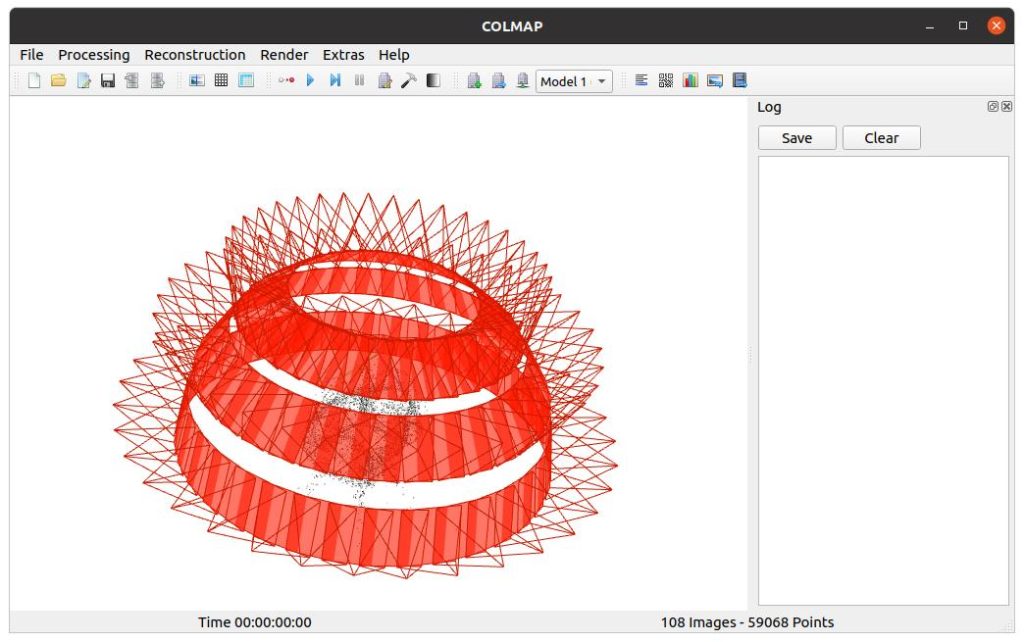
When you open COLMAP, the graphical interface should load without errors. You should be able to navigate menus, open settings, and access tools easily.
A properly functioning interface is the first sign of a successful installation.
Testing Basic Features
Try importing a small set of images and explore the available options. If the software responds correctly and processes basic tasks, it means the installation is complete.
Identifying Problems Early
If the application fails to open or behaves unexpectedly, it is better to address the issue immediately by checking system compatibility or reinstalling the software.
Common Issues and Solutions
Even with a no coding approach, some users may encounter minor issues during installation. These are usually easy to resolve.
Application Not Launching
- Ensure your system meets minimum requirements
- Check if the downloaded file is complete
- Try running with administrator permissions
Slow Performance
- Close background applications
- Upgrade system memory if possible
- Ensure your graphics drivers are updated
Missing Features
- Verify that you downloaded the full version
- Avoid unofficial or modified builds
Advantages of Installing Without Coding
Installing COLMAP without coding offers several clear benefits, especially for beginners.
It reduces the complexity of setup and allows users to focus on learning the software instead of troubleshooting installation issues. This approach also minimizes the risk of configuration errors that often occur when compiling software manually.
For students and professionals who need quick access to tools, this method saves time and effort while still providing full functionality.
Limitations of a No Coding Approach
While the simplified installation method is convenient, it does come with some trade-offs.
Users may not have access to advanced configuration options or experimental features. Additionally, performance optimization options are limited compared to custom-built installations.
However, for most users, these limitations do not affect basic usage and learning.
Tips for First-Time Users
Starting with COLMAP can be exciting but also overwhelming. A structured approach helps you learn faster and avoid confusion.
Getting Started Smoothly
- Begin with a small image dataset
- Explore the interface gradually
- Focus on understanding workflow steps
Organizing Your Work
- Keep images and projects in separate folders
- Save your work regularly
- Maintain backups to prevent data loss
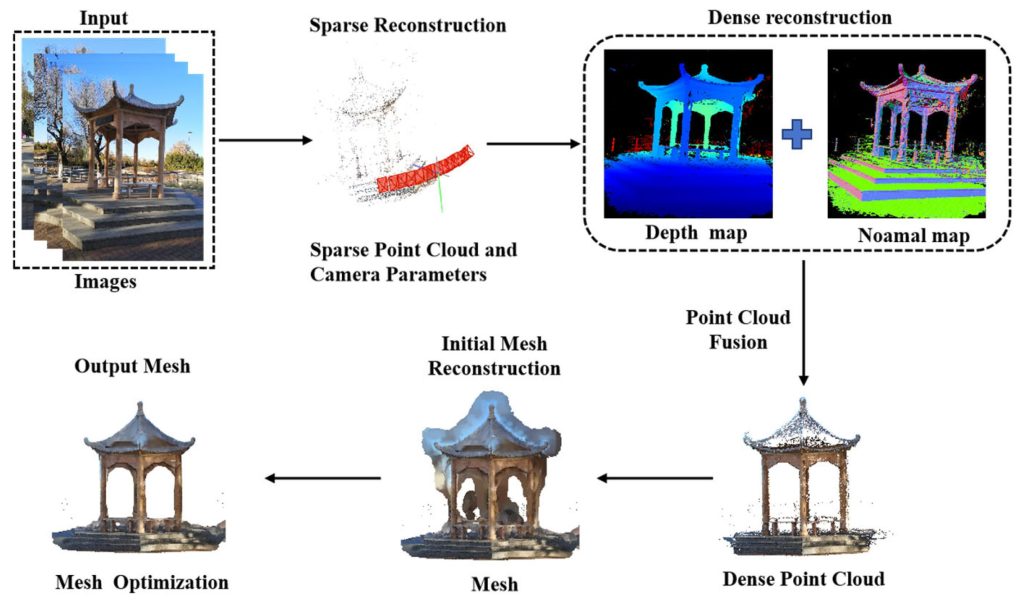
Learning the Workflow
- Import images
- Extract features
- Match images
- Generate 3D models
Understanding these steps helps you use COLMAP effectively after installation.
Maintaining Your Installation
Once COLMAP is installed, proper maintenance ensures long-term performance and reliability.
Regularly updating your system and software helps prevent compatibility issues. Keeping your drivers updated also improves performance, especially when using graphics hardware.
It is also a good practice to periodically check for newer versions of COLMAP to benefit from improvements and bug fixes.
Conclusion
Installing COLMAP on Windows, Linux, or macOS without coding is entirely achievable with the right approach. By using prebuilt versions, graphical installers, and simplified methods, even beginners can set up the software بسهولة and start working on 3D reconstruction projects.